
Cepther / Guide
How to use Cepther
First launch
Launch the app on Windows.
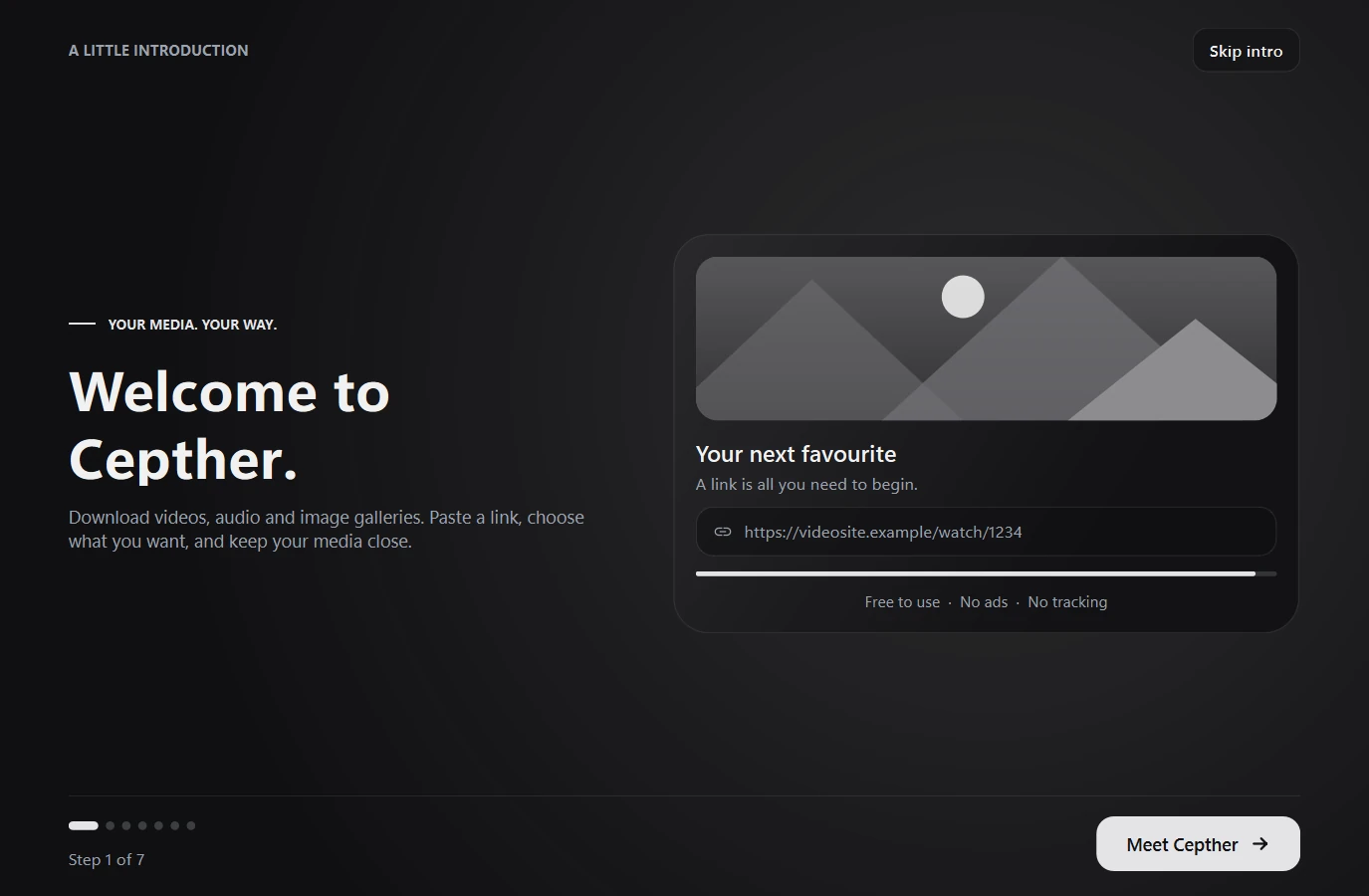
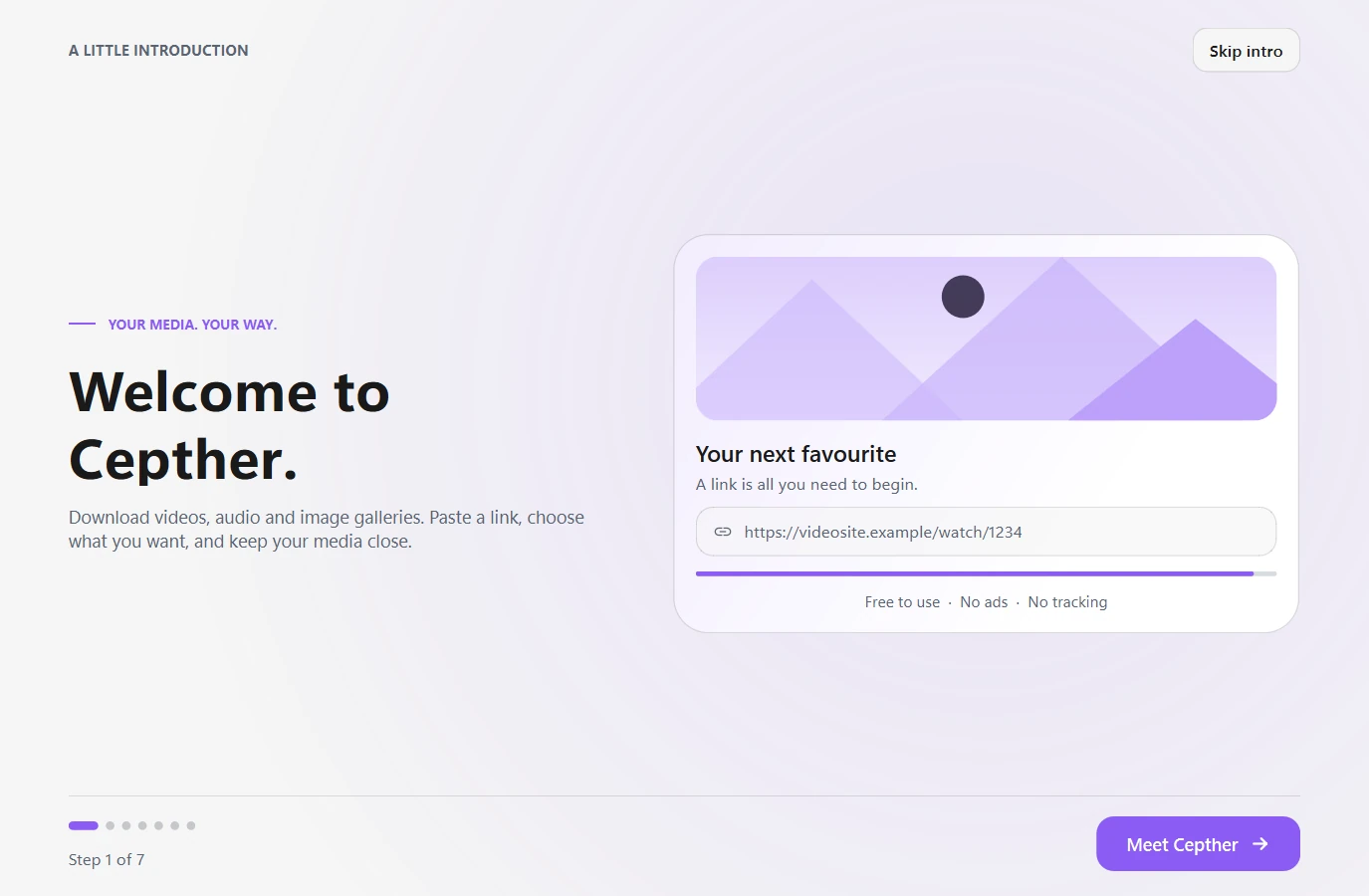
A full window tour explains the basics and ends by downloading the required tools. Open it again any time from the About page in Settings.
The default is Downloads/Cepther. Change it in Settings → Downloads → Download Path if you prefer.
Your first download
Copy the address of the video, audio or gallery page.
Choose the available quality and format, or select Best Output.
Start the download. Open the saved file or its folder when it finishes.
Choosing quality
Select the best quality the source provides. Your saved container preference still applies.
Every format is listed, grouped by resolution. Filter by format, resolution, frame rate, codec or bitrate, or turn on MP4 only.
Open a format’s details to see everything about its video and audio before you choose. Opening details does not select it.
Choose a container and codec supported by the device or player you intend to use.
Edit the title to choose the saved filename.
Getting audio only
Select MP3, M4A, WAV, FLAC, AAC, OGG or OPUS and the available quality setting. Turn on MP3 only for an MP3 at 320, 256, 192 or 128 kbps.
Set these options separately before downloading.
A lossless format preserves the audio it receives; it cannot restore detail missing from the source.
Batches and playlists
Enter one link per line, or paste a playlist address and choose the items to download.
Use a .txt file with one address per line.
Choose the quality and how many downloads run at once. Sleep Between Items sets a gap between download starts.
With Download Archive on, Cepther asks once whether to skip the items you downloaded before.
Following creators
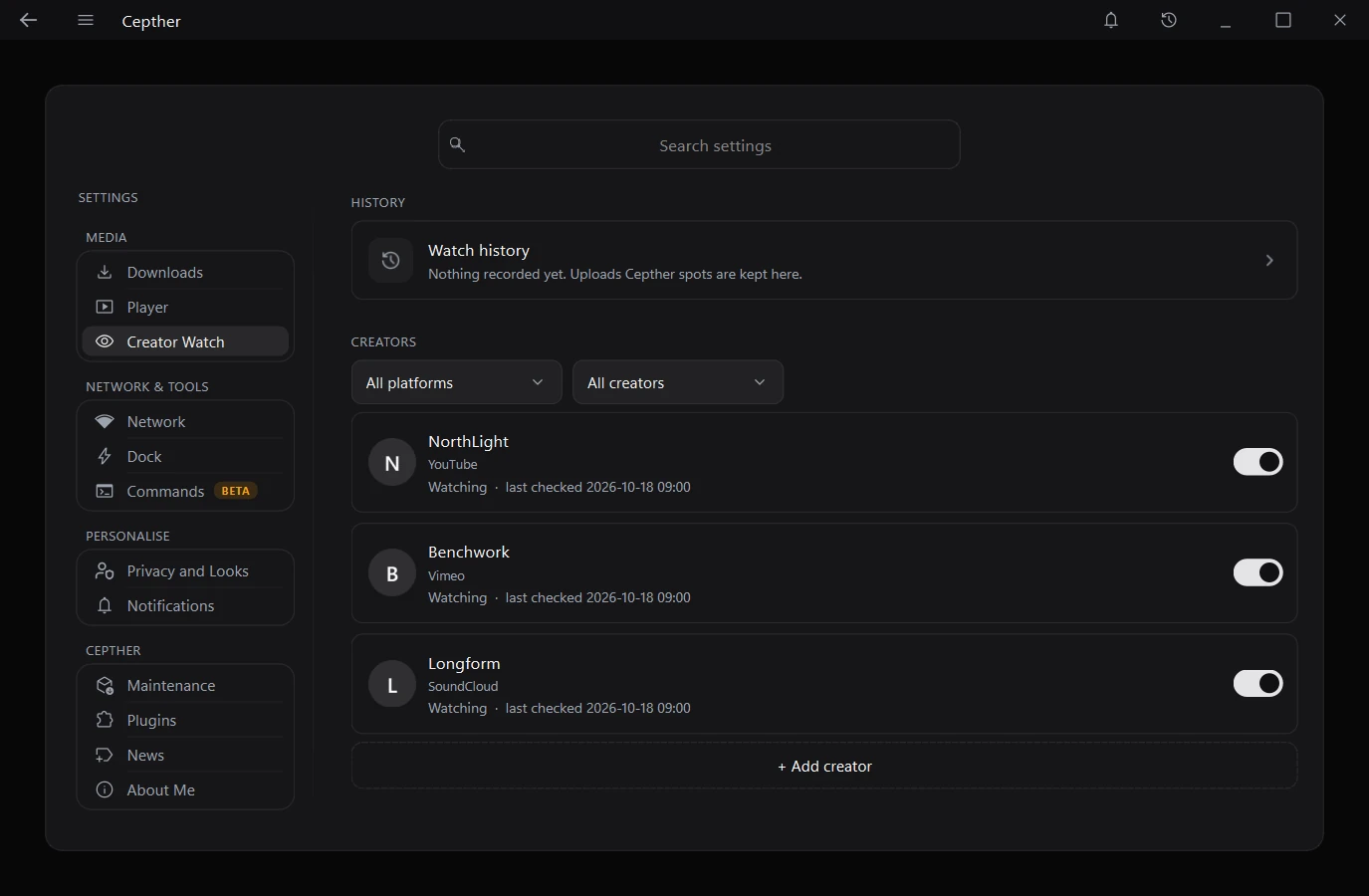
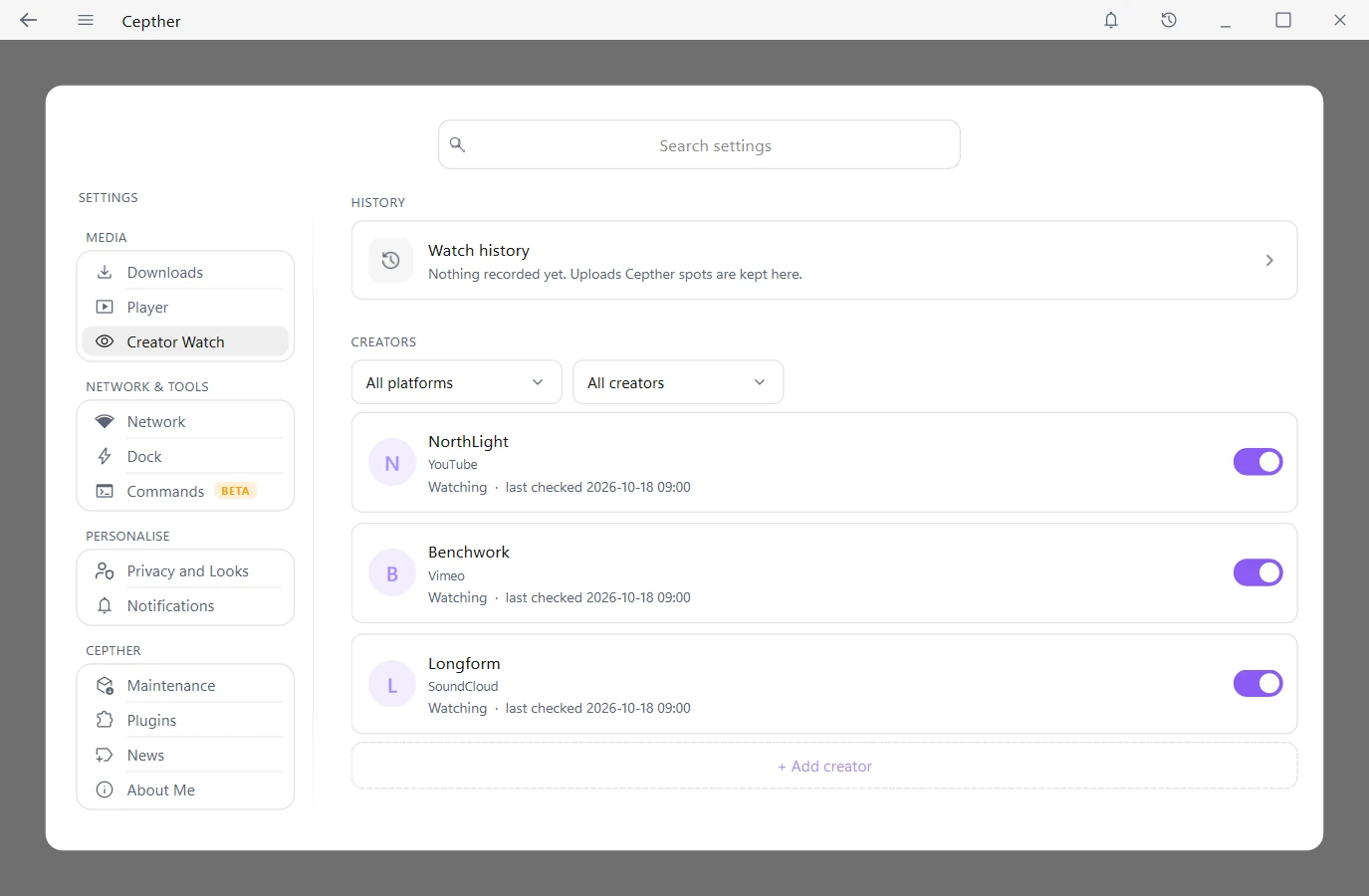
Open Creator Watch in Settings and enter a channel or profile address.
Choose the check interval, quality and filters. You can add several accounts for one creator.
Download new uploads automatically or get a notification. You can also catch up on uploads later.
Checks continue while the app is open or in the tray. They stop when you quit.
Open Watch history on the Creator Watch page to see the uploads Cepther spotted, with Open and Download for each. The New pill on a creator's card opens that creator's own history.
Using the dock
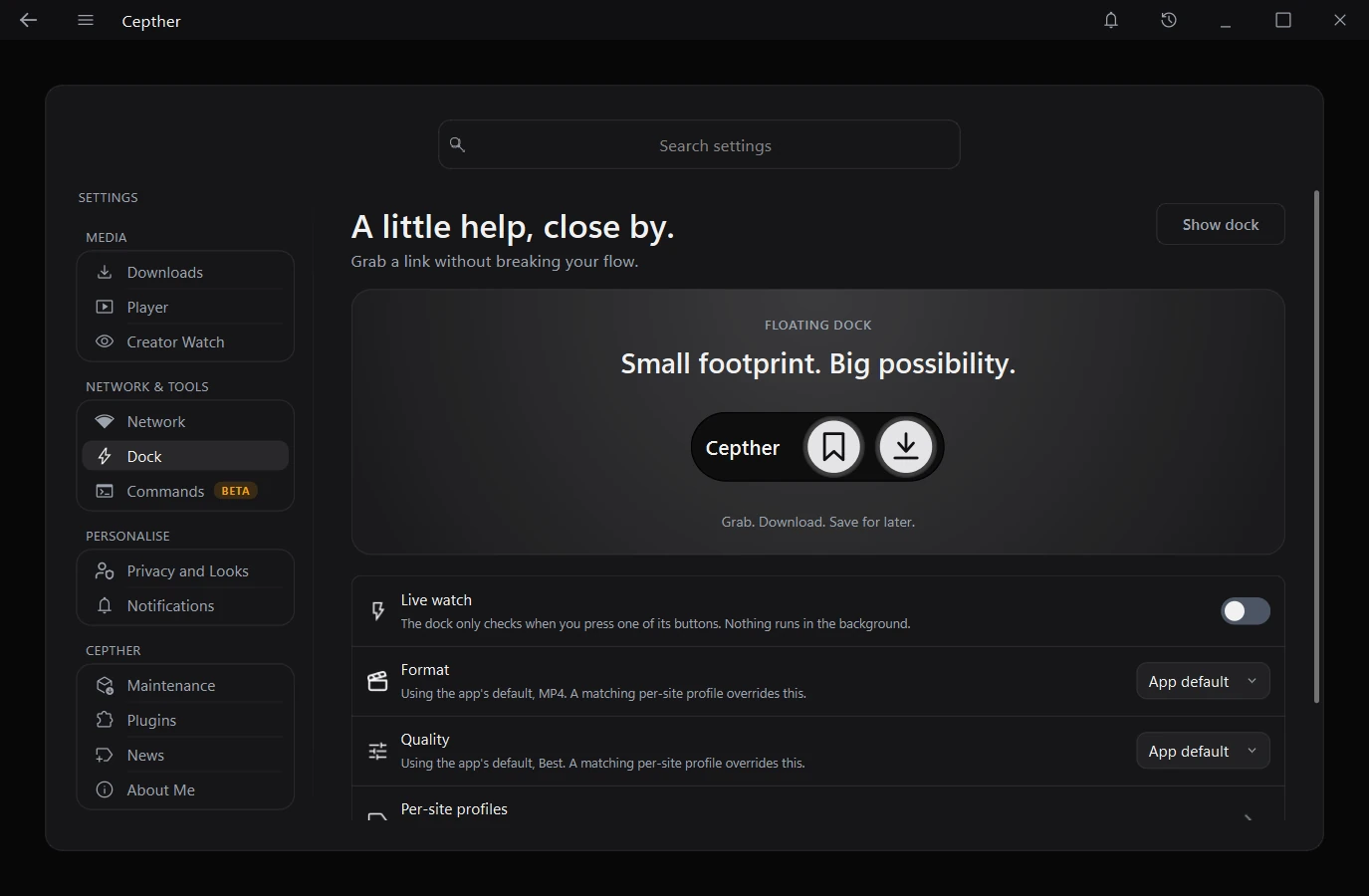
Use it to read the active browser tab’s address. Copy the link if detection is unavailable.
Save links with tags for later downloads.
Choose a default format and quality for each site in Dock settings.
A light runs around the dock when a link is found and keeps circling while it is checked. It fills when the check succeeds and turns red when it fails.
When you are not using the dock it folds to a small bead and opens when the pointer returns. Drag it to a screen edge to tuck it away.
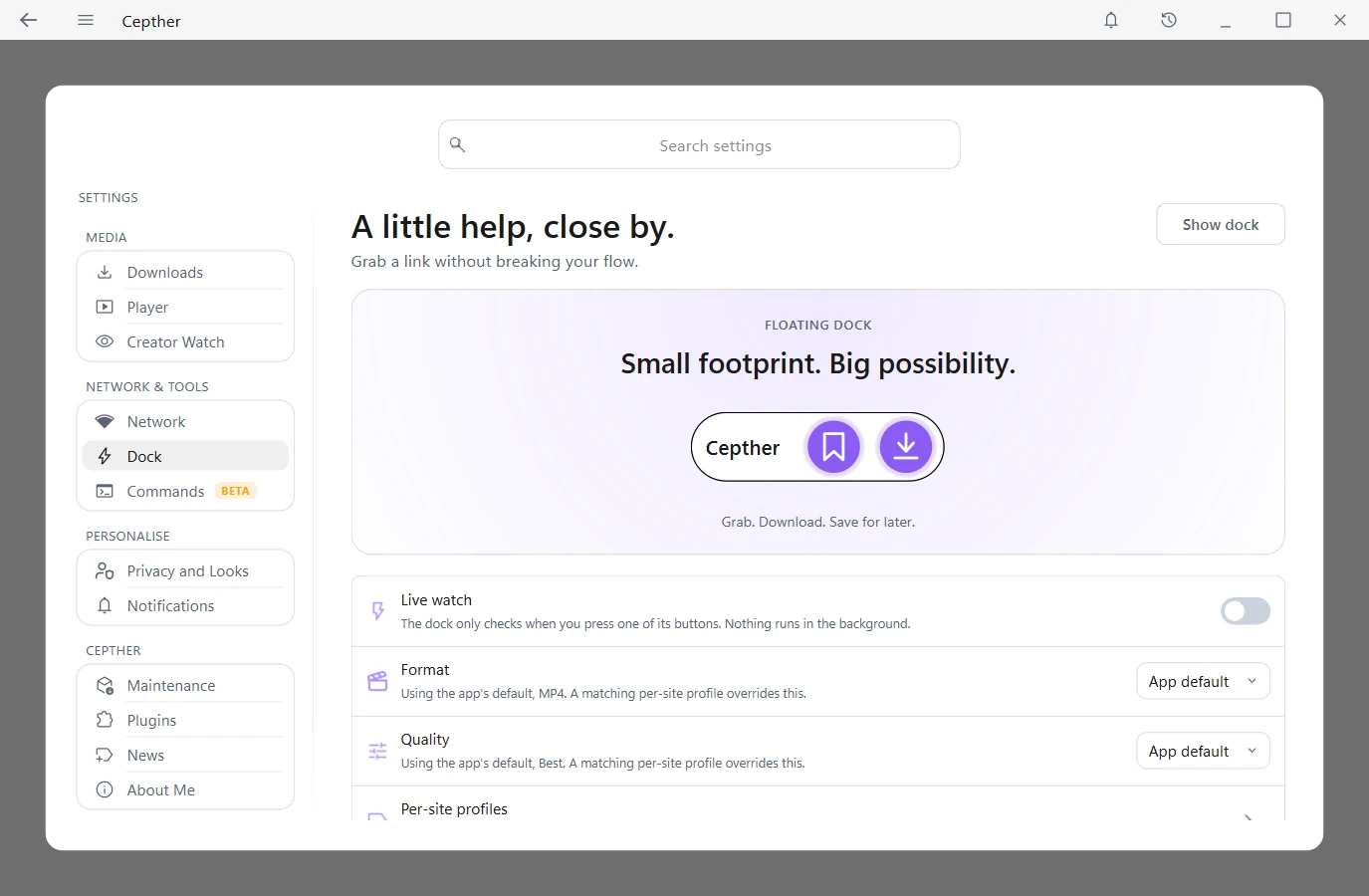
Settings, Dock shows the dock on a stage you can press, with its options underneath.
Cookies and logins
Cookies can help with supported content that requires a login. Your account must already have access.
Use the built in browser to create a cookie file for the site.
Alternatively, import a cookies.txt or JSON cookie export, paste cookies or a Cookie header, or choose a supported installed browser and profile. Cepther shows what it found before saving. A pasted Cookie header needs the site typed in. A browser source must pass its access check; close the browser and retry if its profile is locked.
Cookies are stored locally and sent to the relevant site for authentication. Remove saved cookies in the Cookie Manager.
Speed and network
Turn on Multi Threaded downloads in Downloads settings.
Set up to 16 connections. More connections do not guarantee higher speed; the source and your connection determine the result.
Choose how many items run at once, up to 16.
Set a global speed limit in Network settings, or a limit for one download in the picker.
Keeping files tidy
Use Advance Management in Downloads settings to sort by platform, creator or media type.
Use Keep Duplicate to save another copy rather than skip an existing file.
Search by title, URL or error. Filter by type or date, view failure details, copy logs, play a file, fetch its link again or send it to the Recycle Bin.
Enable it in Downloads settings to be asked before downloading something you already have. Download Again still works whenever you want another copy.
Use the More menu beside Clear History to export JSON or CSV, copy JSON, or import a JSON export. Imported entries merge with the ones already there.
When something fails
Check the failed download’s details for the reason.
Open Settings → Maintenance and check for newer download tools.
Try fewer threads or turn Multi Threaded downloads off if the source refuses parallel connections.
Confirm the link is accessible in your browser. Add cookies if the source requires your login.
Post the steps and error message in the bug report forum. Remove cookies and other private data from logs before sharing them.
Updating
Cepther’s planned app updater will notify you of new releases. You choose when to install them.
Open Settings → Maintenance to check and install updates for yt-dlp, gallery-dl and Deno, one at a time or all together. Revert is available when a previous archive has been kept. FFmpeg, ffprobe and aria2c are fixed to specific releases and do not check for updates.
See the changelog for version details.
Settings → Plugins installs optional components that are not part of the app. Each is checked against a fixed hash before it is unpacked, and can be updated, reverted or removed. The Torrent component is not published yet.
Subtitles, clips and chapters
Select subtitle languages in the picker and choose whether to embed them. Choose audio tracks separately when the source offers several.
Set a default in Settings → Downloads → Subtitle Format, or change it in the picker’s Subtitles window for one download.
For a YouTube video, press Load translations in the Subtitles window and tick the languages. They are saved as separate files after the video. Picking many raises the chance of a rate limit.
In Settings → Downloads, set each category to Off, Mark or Remove. In the picker, keep Global, turn it Off, or choose Custom for one download.
Open Chapters in the picker’s Settings tab, pick the chapters you want and choose Chapters only or Chapters + original. The files go into a folder named after the video.
Chapters and Trim cannot be used together, and live recordings are excluded. A chapter that SponsorBlock removes completely is skipped. With a trim, SponsorBlock Remove applies only when the trim starts at 0:00.
Set start and end times for a clip. Save Thumbnail writes a separate image; cover art controls embedding in the media file.
Thumbnails, info and comments
Press Extras in the search box to show the Thumbnails, Media info, Comments and Subtitles tools.
Paste the link and press Fetch. A link already in the search box is filled in for you.
Pick thumbnail sizes and a format, the info formats, how many comments and in what order, or the subtitle tracks and format.
Choose a folder and press Export. Existing files are never overwritten; a new copy gets a number.
Scheduled videos and live streams
Enable the optional wait for a scheduled video or premiere you submit manually. Keep Cepther running until it becomes available.
For an active live stream, choose recording from now or from the beginning when earlier footage is available. Stop recording to save the captured file.
Waiting for a scheduled live stream to become a recording is not supported. Creator Watch has its own checking settings.
Using the media player
Use Play in History, open a local file in the player or drop files onto it. Add files to the playlist and drag them by their handle to change the order.
Use Space to play or pause, Left/Right to seek, Up/Down for volume, M to mute and F for full screen. Choose a speed between 0.25× and 4×.
Select an available audio or subtitle track, load external subtitles, adjust subtitle timing or choose an audio output device.
Jump to a time or chapter. Set A and B to repeat a section, or use picture in picture to keep the video visible.
Use the screenshot action for a PNG at the source resolution. Choose whether subtitles appear in screenshots in Player settings. Open the metadata viewer for stream details.
Configure seek steps, volume steps, default speed, whether the next file plays by itself, subtitle styles and the screenshot folder in Player settings.
Trying AI subtitles
Open Settings → Maintenance to install Whisper and a model. You can also choose a model during first setup; it is optional.
Open AI Subtitles in the picker’s Settings tab. Enable it, choose Auto or a spoken language, select an installed model and choose original language or English translation.
Enable Export Captions to keep an SRT file. Supported video outputs can contain an AI subtitle track. Transcription runs locally after the media download; live recordings are excluded.
The supplied history still leaves transcription with a real model unverified. Review generated captions and report failures with the error details. Downloads of engines and models require internet access.
Notifications
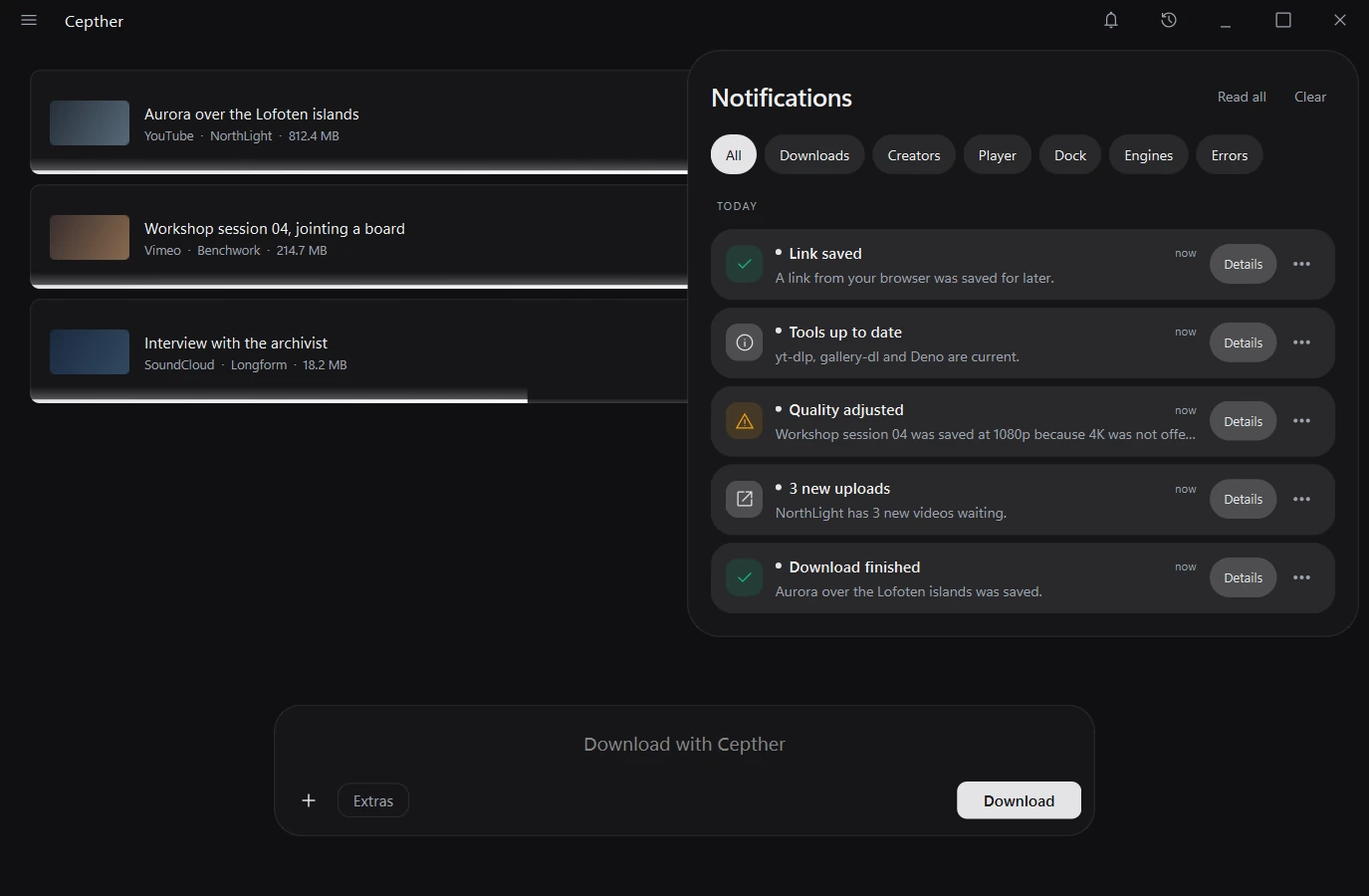
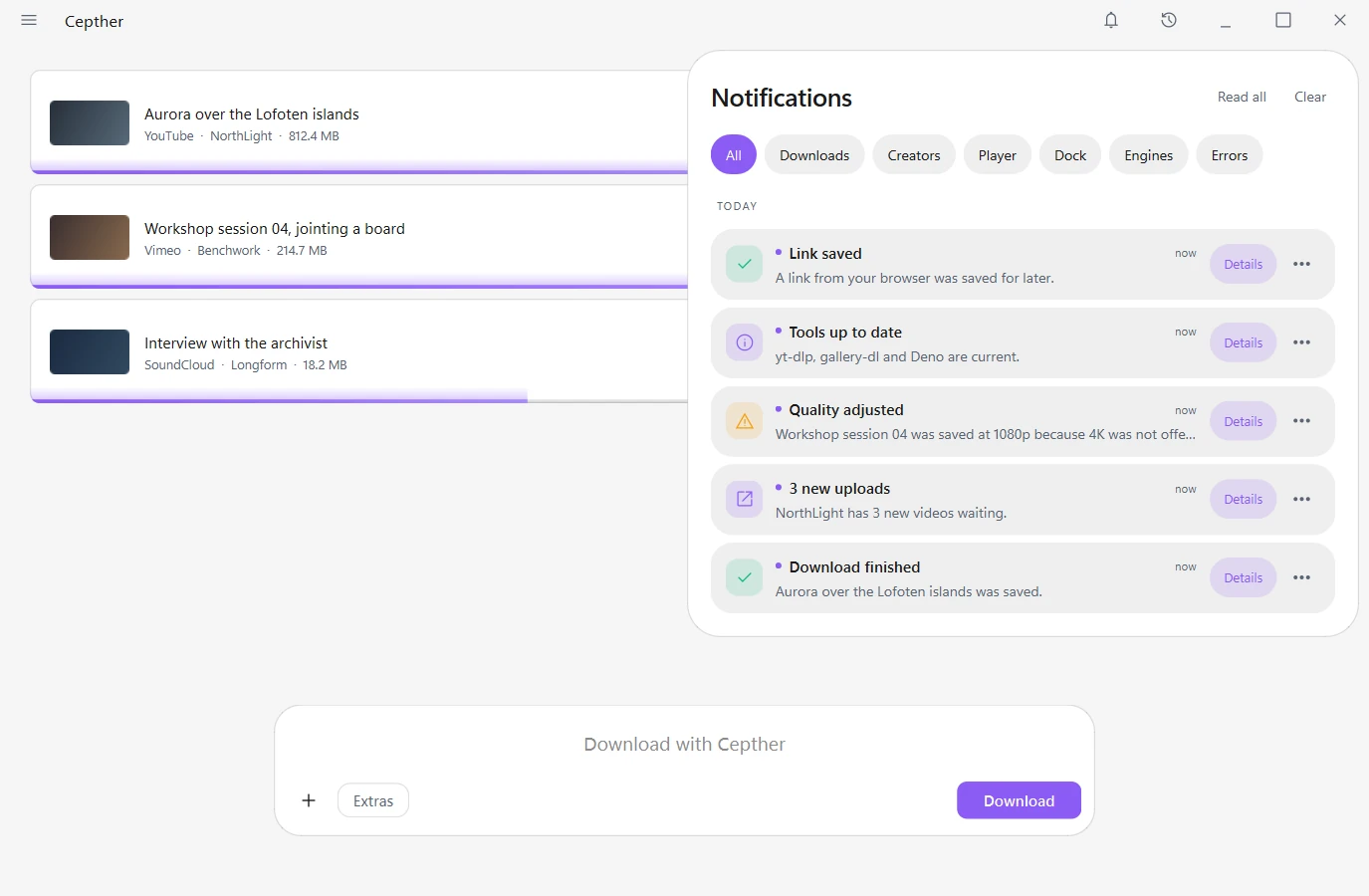
The bell beside History lists recent downloads, new uploads, dock and player events, engine updates and errors. Filter by category and mark items read.
Open a file or folder, download a new upload or go to the related settings straight from the feed.
Settings → Notifications → Notification Panel turns recording on or off for each category and clears the feed. Nothing is recorded in Incognito.
Under Notification Sounds, choose a sound for each kind of notification or keep the Windows sound. A failed download is silent unless you pick one.
Cepther can show short announcements from the project in a popup that stays until you press Close. Settings → News keeps them all and has a switch to turn the feed off.
Cleanup and preferences
Settings → Maintenance separates temporary download files from engine archives. Check each size before clearing. Active and paused download files are protected.
Automatic cleanup starts off. Enable it and choose an interval and time. Removing engine archives also removes the rollback versions they contain.
Settings → Privacy and Looks contains the app themes and privacy options. The website’s three themes are independent of the seven app themes.
Use Commands for supported arguments and saved presets; this area is marked Beta.